
The OrganiSZing Canva Blueprint
Stop wasting time hunting through Canva and start creating content faster, with a simple system you can set up in under an hour.
Doing your own social media without a VA, designer or admin person quietly cleaning up behind you? This was made for you.
If you’re a small business owner or solopreneur creating your own social media, lead magnets, presentations, website graphics and marketing materials, your Canva account can get messy very quickly.
When you don’t have a VA organizing things in the background, that mess costs you time, energy and momentum.
This short, practical course will help you clean up your Canva workspace, create a folder system that makes sense to you, name your designs properly, save your templates and finally find what you need without scrolling, searching, swearing, or starting again from scratch.
Do you open Canva with good intentions…then immediately feel overwhelmed?
You are not alone. Most small business owners don’t have a Canva problem...they have an organization problem.
You may have the designs.
You may have the templates.
You may even have the brand assets.
If you can’t find them when you need them however, Canva becomes another stressful job on the list instead of a tool that helps you create content faster.
Once that’s sorted, creating social media content feels lighter, faster and much less frustrating.
In under an hour, you will learn to...

Clean up your Canva clutter
Sort through your designs, uploads and templates so your Canva account feels less overwhelming and much easier to use.

Create a simple folder system
Set up folders that make sense for your business, your content and the way you actually work.

Find and reuse your designs faster
Name, save and organize your designs so you stop recreating things you’ve already made.
This is for you if ...
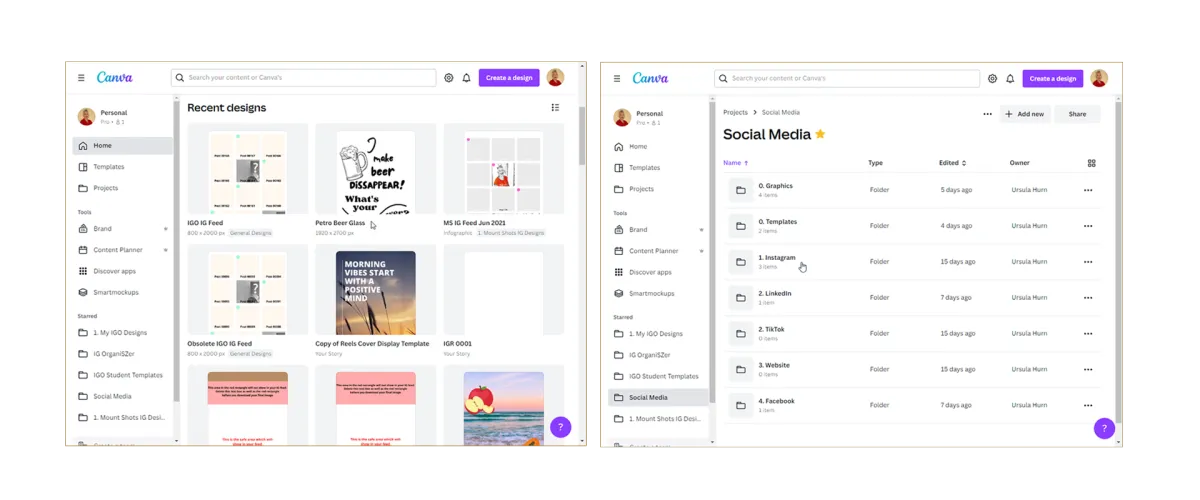
You create your own social media content and Canva has become messy, cluttered or hard to search.
You know you have graphics, templates, brand assets or old designs somewhere…but finding them is another story.
You don’t have a VA, designer or admin person organizing everything behind the scenes.
You want a simple Canva system you can actually maintain without needing to start from scratch.
You’re ready to stop wasting time recreating designs you know you’ve already made.
You want Canva to support your content creation instead of slowing you down.
Can't AI just do this for me?
No, not really.
AI can help you create graphics, generate design ideas, resize content and speed up parts of your creative process.
AI however, can’t look at your Canva account and know:
which designs are still useful;
which ones belong together;
what your business categories should be;
how you think about your content;
which templates you reuse;
what naming system will make sense to you later;
what needs to stay, go or be turned into a reusable asset.
That’s why this isn’t about making Canva “pretty.” It’s about making Canva practical—so your future self can actually find things.
Inside the OrganiSZing Canva Blueprint, you’ll learn how to:
Create a simple folder structure that makes sense for your business.
Name your designs properly so you can search and find them quickly.
Organize your templates, uploads, brand assets and finished designs.
Save your most-used designs so you’re not reinventing the wheel every time.
Set up Canva in a way that supports your social media workflow instead of slowing it down.
Build a system you can keep using, even if you’re not naturally organized.
What's included:
Short, easy-to-follow video lessons.
Practical step-by-step guidance.
Simple organizing prompts so you know what to keep, move, rename or delete.
A clear Canva workflow you can come back to again and again.
Lifetime access so you can revisit the training whenever you need a refresh.
For US$27.00, you get
A short, practical course that helps you organize your Canva account properly, without needing to hire a VA, designer or tech support person to do it for you.
You’ll be able to work through the key lessons in under an hour and start using your new Canva system straight away.
Course Outline
This course outline shows you the structure as well as the length of each lesson (L1, L2 etc).
The five lessons which will teach you the key principles are contained in Section 2 (S2) and will take you less than an hour to complete.
S1: OrganiSZing Canva Blueprint
L1: Course Overview: 1:46 mins
S2: Lessons
L1: Folder Management: Folder names and structure: 8:06 mins
L2: Naming Conventions: Design names and saving designs: 7:06 mins
L3: Organizing Designs: Moving and saving designs into the relevant folders: 6:59 mins
L4: Using Designs and Creating Templates: Duplicating design pages for changes and creating your own templates: 11:05 mins
L5: Managing Designs: One design per document: 9:38 mins
S3: Extras
L1: Managing Uploads: Saving images and uploaded images to your own folders: 6:50 mins
L2: Starring Folders and Templates: Saving Canva elements to your own folders: 3:34 mins
S4: Templates
L1: Instagram Post Template: w1080px x h1350px Instagram post template with guides: 5:10 mins
L2: Instagram Reels Cover Templates: w1080px x h1920px Instagram video/reel cover templates with guides: 6:11 mins
L3: Saving Brand Templates: Saving templates to your brand kit: 4:15 mins
L4: Using Template Guides: Using guides from templates on posts or reel covers that don't have guides: 4:48 mins
The course is self-paced and you can get support by leaving your questions in the comments below each lesson where I will respond.
Why it's worth the investment
For only US$27, this is a tiny investment compared with the time you lose every week searching for designs, recreating graphics you already made, or avoiding your content because Canva feels like a hot mess.
In less than an hour, you’ll have a simple system you can keep using—without needing a VA, designer or tech wizard to rescue you.
The best part is, once your Canva account is organized, it becomes much easier to keep it that way.
Imagine opening Canva and actually knowing where everything is
No more mystery designs.
No more endless scrolling.
No more starting from scratch because you can’t find the thing you already made.
No more wasting time trying to remember where you saved something.
Just a simple, organized Canva account that helps you create content faster, with less stress and more confidence.
Success Stories
What Past Clients Are Saying
"Ursula did a great job keeping it very clear in her instructions and they were very easy to put into action.
Other benefits I found were that being organized makes being creative so much easier, it saves time and makes it fun!
I was pleased with the length and the information in the course and I thought it was a fair price."
Liz Geeslin
Better Lifestyle Solutions, USA
"I think if the OrganiSZing Canva Blueprint had been more expensive I would have thought twice but the price was a great deal and I liked the fact it was a short course, easy to complete in under an hour.
I liked the fact that I could organise different posts into different folders, making it easy to refer back to, rather than searching through all my designs."

Shonagh Brown
Shona & Co Collective, Australia
Ready to get your Canva organized?
Click below to get instant access to the OrganiSZing Canva Blueprint and start sorting your Canva account today.
You don’t need to do this perfectly.
You just need a simple system that makes Canva easier to use, easier to search and easier to keep organized.
Yes! Count me in!

© 2026 Ursula Hurn | Simple Visibility - All rights reserved